

Add team members
Invite colleagues to your organisation on SOTRU. Each team member gets their own account under your organisation and can act on its behalf.
Invite from Settings
Open organisation settings
Click the Settings icon at the bottom-left of the sidebar while viewing your organisation workspace.
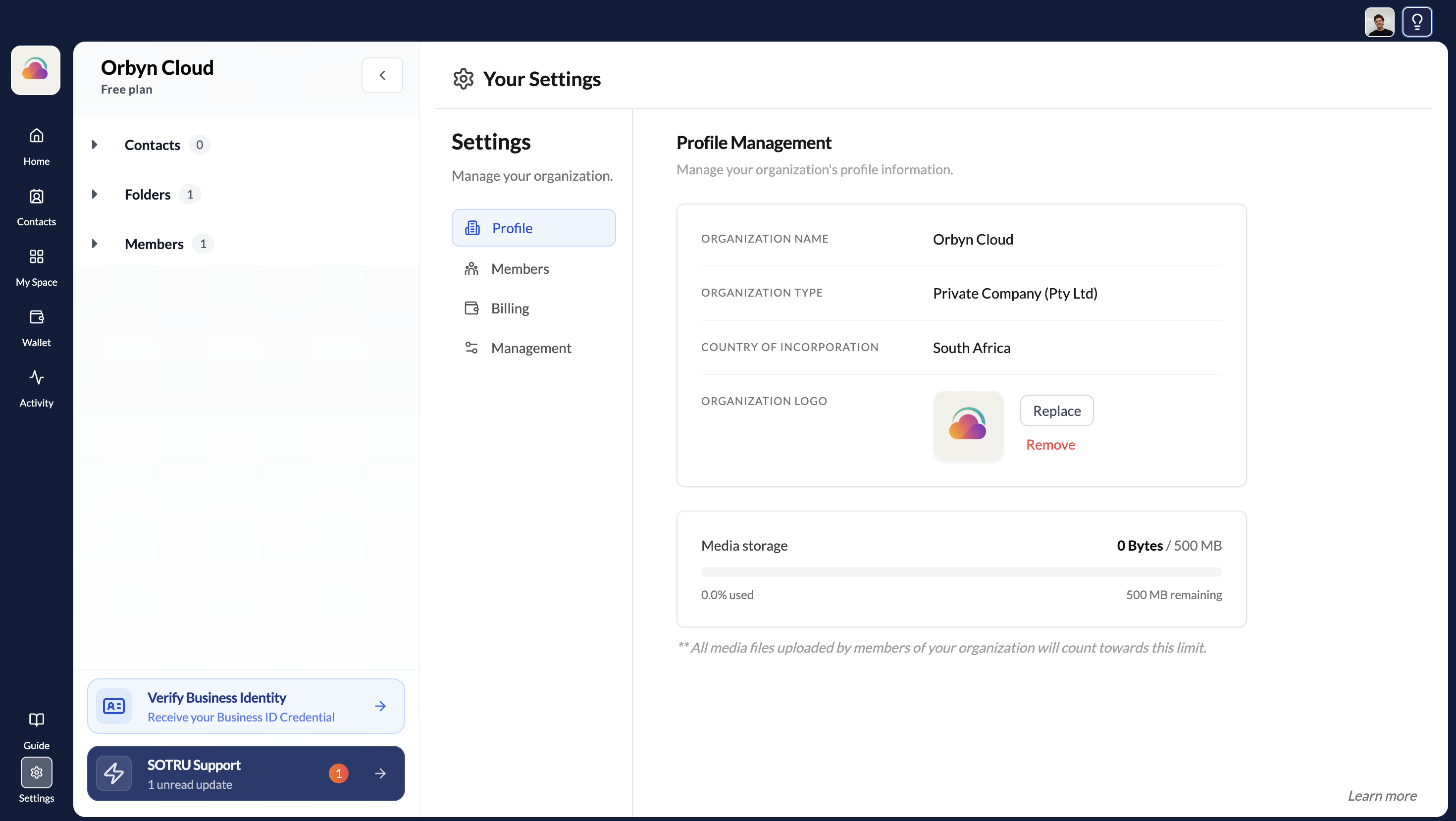
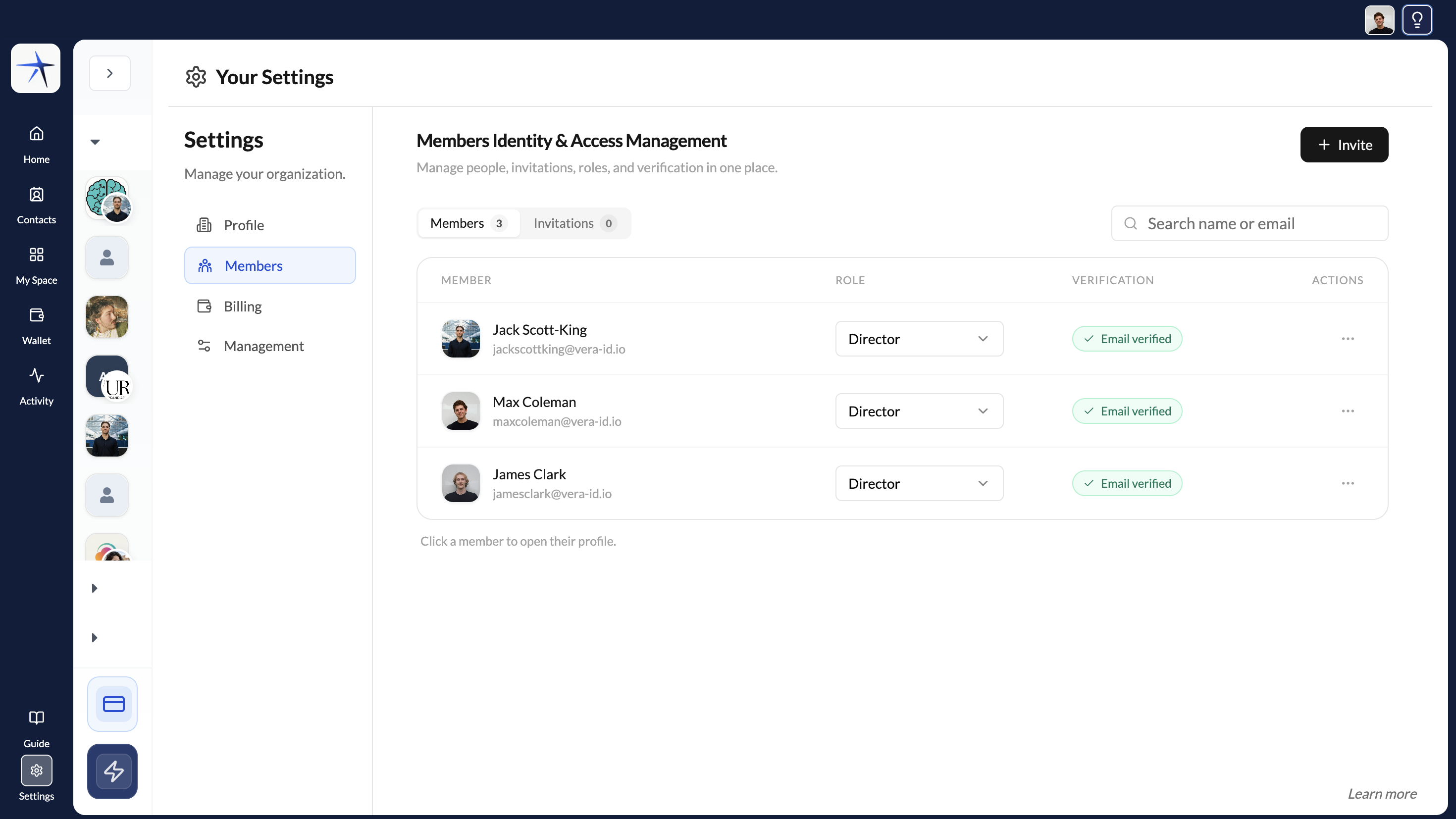
Go to Members
In Settings, click Members in the navigation. You'll see a list of current team members and an Invite button.
Enter email addresses
Type one or more email addresses. You can enter multiple addresses separated by commas, or paste a list.
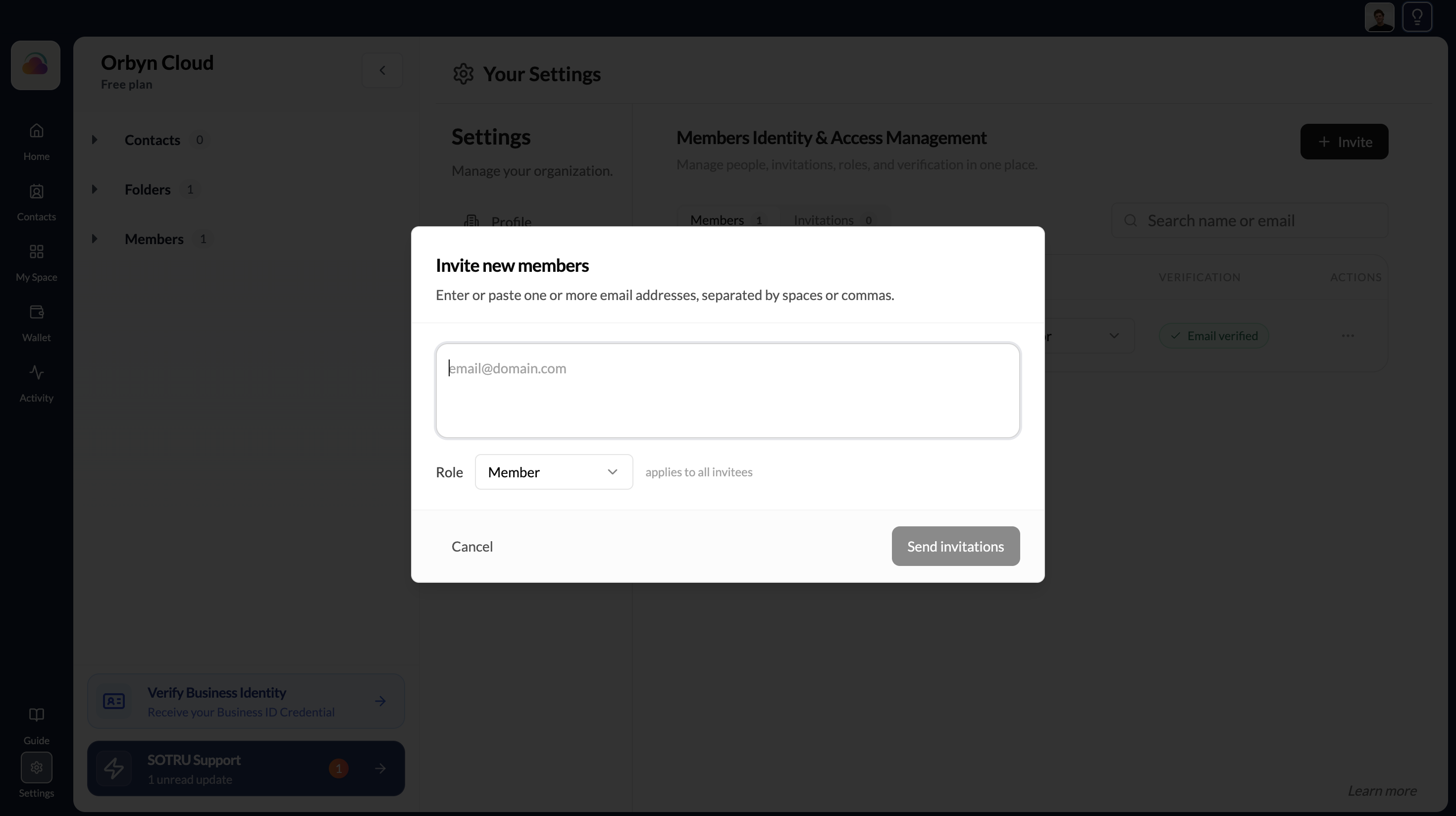
Choose a role
Assign a role to the invitees:
- Director — only legal directors of the organisation should be added here. Provides full access to organisation settings, credentials, and member management
- Admin — full access to organisation settings and member management
- Member — access to contacts, channels, and documents; cannot change organisation settings, manage credentials, or invite others
Choose the lowest privilege level appropriate for each person.
Send invitations
Click Send Invitations. Each invitee receives an email with a link to create their SOTRU account (if they don't have one) or join your organisation (if they do).
Team members join under their own SOTRU account. They have the ability to add their own personal workspace. When acting in the organisation context, they're linked to your organisation. Their personal and organisational identities remain separate. If a member has already completed personal identity verification in another workspace (their personal account or another organisation), their "Verified" status carries across automatically — they won't need to verify again.
Managing existing members
From the Members page you can:
- View all current members and their roles
- Change a member's role — click the role dropdown next to their name
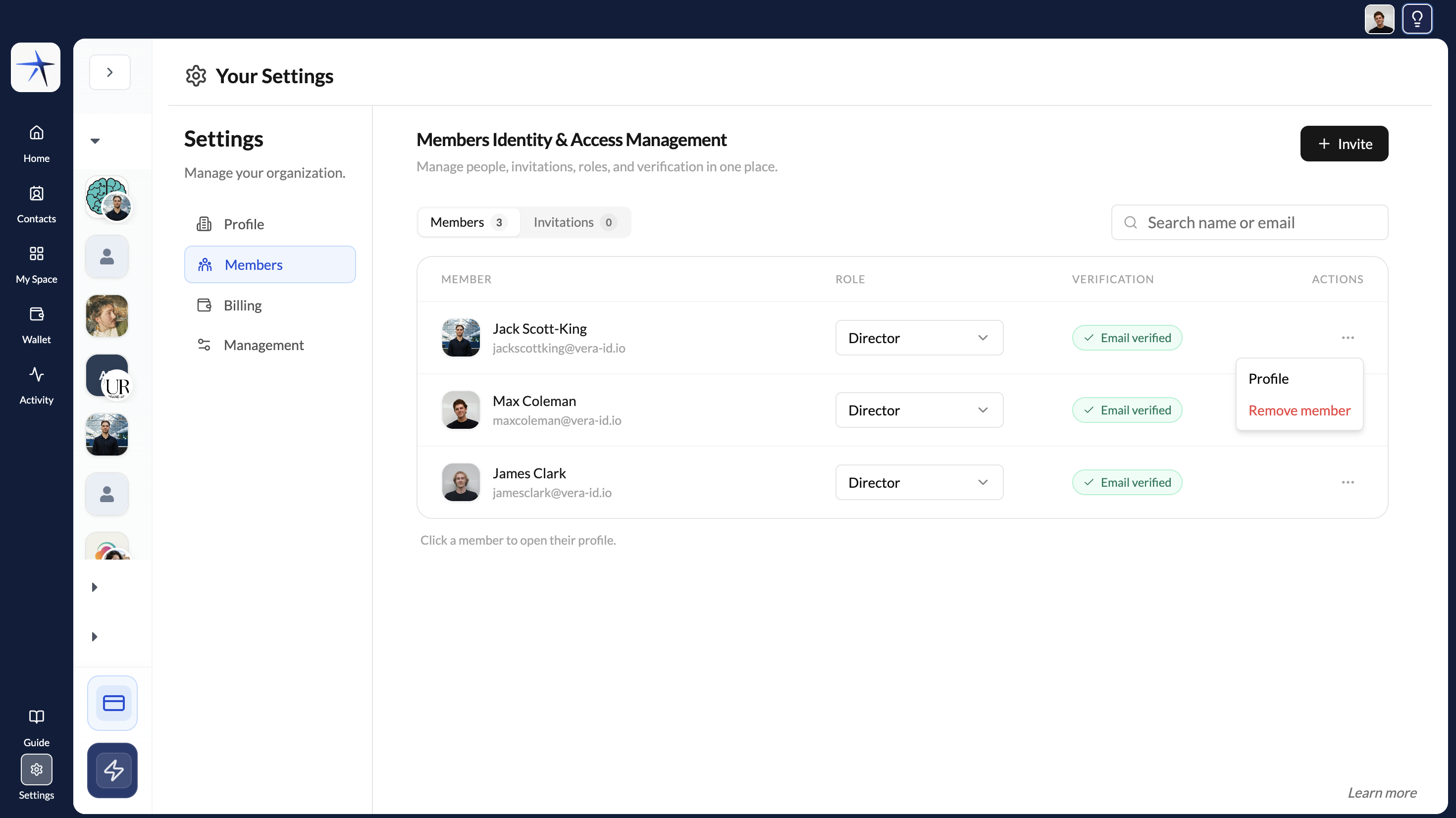
- Remove a member — click the overflow menu and select Remove
Removing a member revokes their access to the organisation workspace immediately.
Viewing member details
The Members table shows each member's role and email verification status at a glance. To see more about a specific member, click the ⋯ overflow menu next to their name and select Profile.
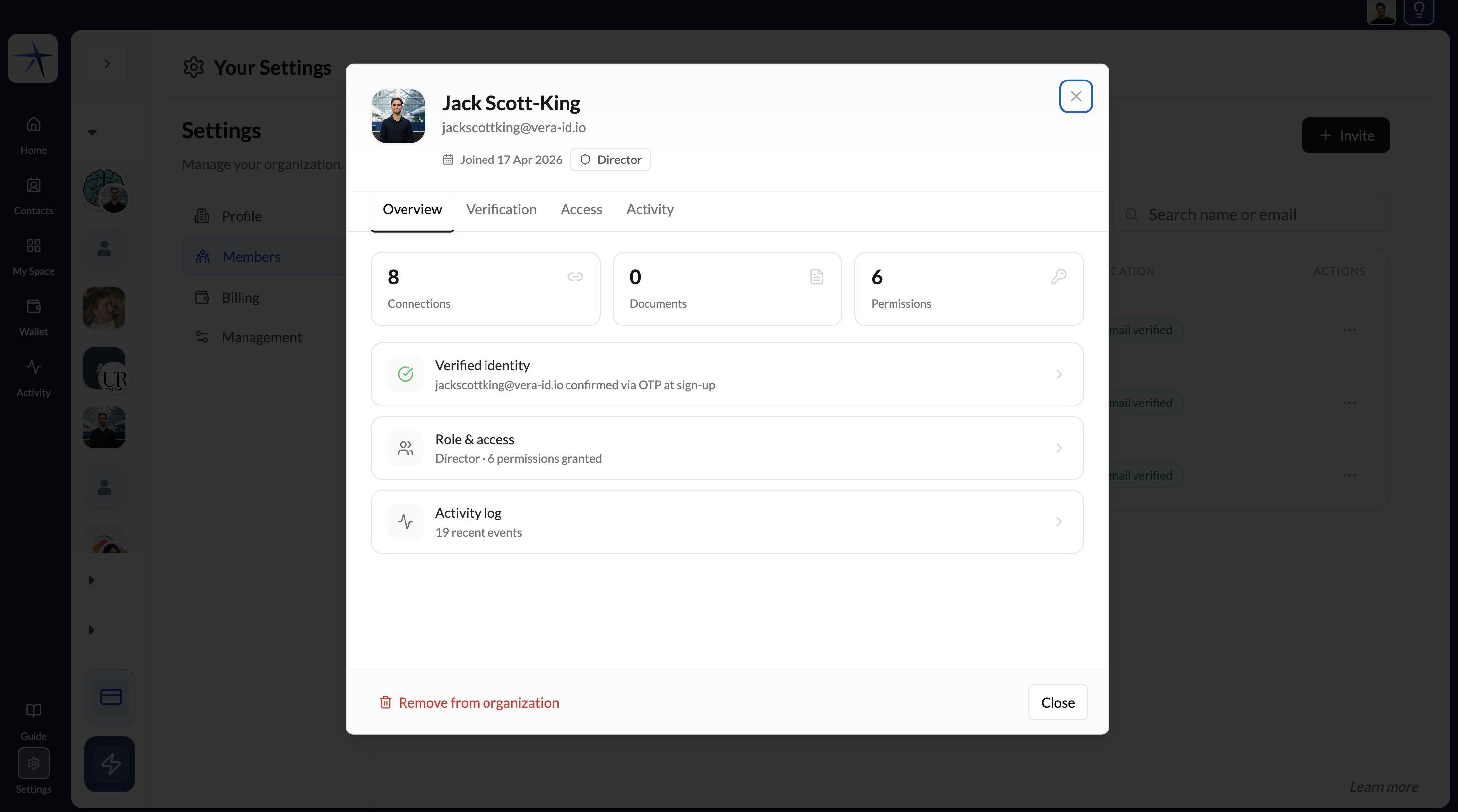
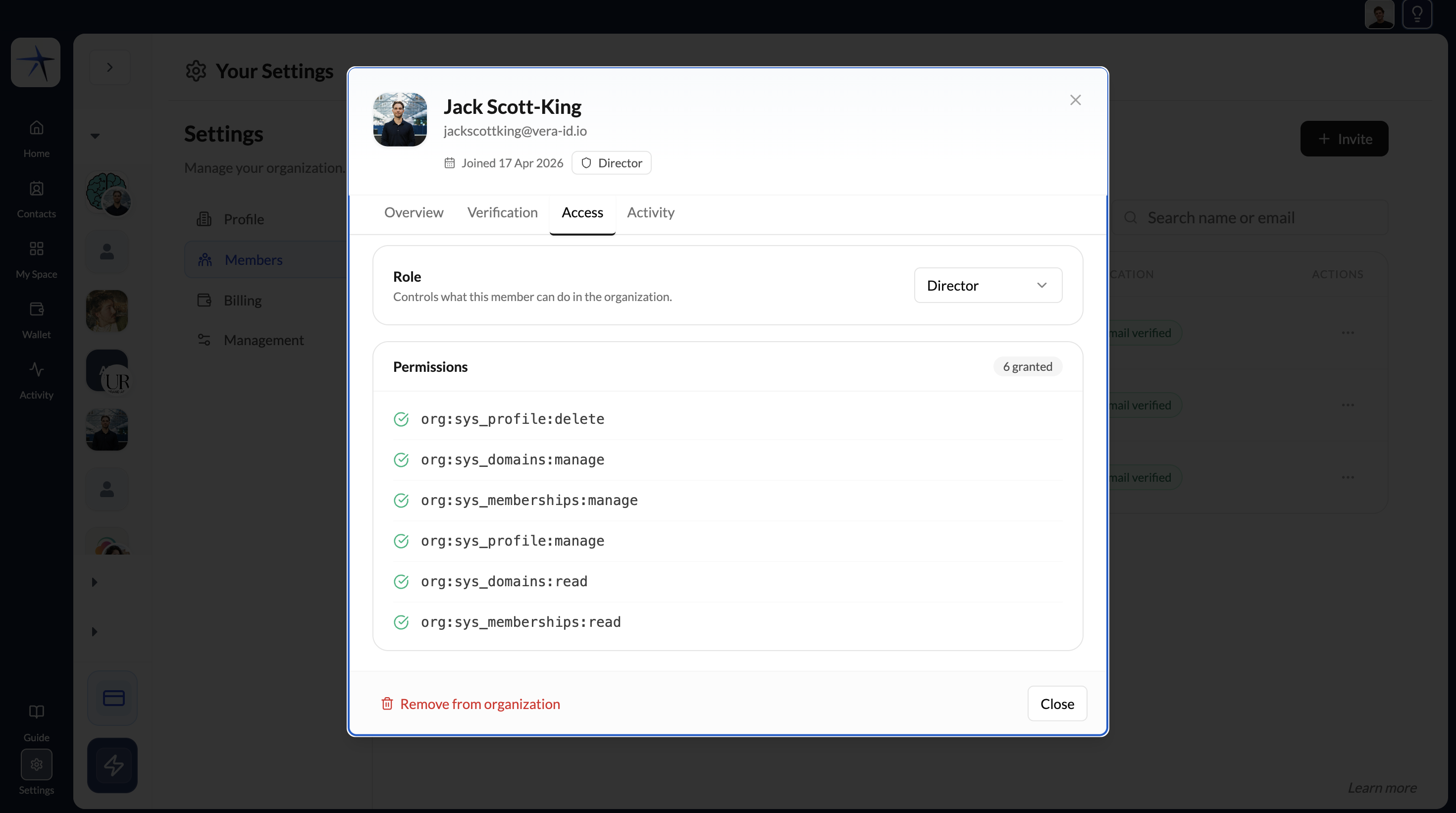
This opens the member profile with four tabs:
Overview shows a summary of the member's activity within your organisation — their total connections, documents, and permissions count — along with quick links to their verified identity status, role and access configuration, and recent activity log.
Access shows their assigned role and the specific permissions that role grants them within your organisation. You can also simply change their role by clicking on the dropdown next to it.
Verification shows what identity verification the member has completed.
Activity shows a log of their recent actions within the organisation workspace.
Team members can use the platform — chat, view contacts, access documents — without completing identity verification. However, sharing and managing verified credentials (like Business ID or Bank Account credentials) requires the relevant verification to be completed. Encourage team members to verify early.
When a team member receives their invitation and joins your organisation, they go through a specific flow. See Join an organisation for what that experience looks like from their side.